

You switched the interface language and half your content is still English
What content translation covers and what it does not, why one entry point asks before it starts and the other does not, and what happens to your original text.
On this page
You changed the interface language in Preferences. The navigation flipped. The buttons flipped. The headings flipped. Then you opened your Professional Journey and every note you have ever written is still sitting there in English, under a heading that is not.
Nothing is broken. What you changed and what you are looking at are two different things, and ATSReady keeps them apart on purpose. This walkthrough explains the boundary, shows the panel that crosses it, and — because this is the part people trip on — explains why translation sometimes stops to ask you first and sometimes does not.
What the switch actually changed
The interface language governs the text ATSReady writes: navigation labels, buttons, headings, form hints, status messages, error text. It is a setting about the product. Change the interface language is the reference page for the control and for what moves when you use it.
It does not touch anything you wrote. Your journey notes, your job notes, the bullets on a resume: all of it stays exactly as you typed it. That is a deliberate refusal, not a gap. The words in the chrome belong to ATSReady and it can rewrite them freely, because rewriting them loses nothing. The words in your record are yours, and silently rewriting a career history because someone changed a preference would be editing your evidence without being asked. So the product changes what it owns, leaves what it does not, and offers you a separate, explicit way to translate the rest.

There is a second reason a screen can be part English, and it is worth ruling out before you go looking for a bug. Where ATSReady has no translation for a particular string yet, it falls back to English rather than showing you an empty label. So an English fragment inside otherwise translated chrome is a missing string; an English paragraph inside your own content is untranslated content. They look similar and have completely different fixes, and only the second one is yours to solve.
Where your own content lives
Content translation has its own home: the Content translations panel in Preferences, subtitled Translate your journal, jobs, and resume content into the languages you use. That subtitle is also its scope statement. It covers the stored content ATSReady understands the shape of, and it does not extend to a resume's own document settings, which are a separate decision described in Résumé language.
Preferences is at /profile/preferences and holds one accordion group, opened a section at a time —
so expanding content translations closes whichever section was open before it. Change
preferences describes the page, and where each setting
lives is the map if you are looking for something that is not on it.
The two ways translation starts
There are two entry points into the same work, and they do not behave the same way. This is the single most useful thing on this page.
From the language switch. After you successfully change the interface language, ATSReady checks the state of your translated content, and if anything is missing or has gone out of date it opens a dialog headed Translate your content, naming the language you have just switched into and telling you it found content not yet translated. You get two choices: Translate everything, or Not now. Nothing starts until you pick one.
From the panel. Translate now and Re-translate stale start the work the moment you press them. There is no dialog and nothing to confirm.
The asymmetry is intent, and once you see it, it is the obvious design. Switching the interface language is a request to change the labels. Translation is a much larger thing to have happen off the back of it, so the product stops and asks. Pressing Translate now in a panel titled Content translations is the request — asking you to confirm what you just explicitly asked for is noise, and the kind of noise people learn to click through without reading. So the confirmation lives where the ambiguity is, and nowhere else.
Two practical consequences. Not now declines this offer and nothing else; the panel is still there whenever you want it. And a press in the panel is not undoable by hesitating — there is no confirmation to catch you, so read the row before you press it.
Translation runs in the background, like the rest of ATSReady's long work, and the activity log is where you watch it if it takes longer than you expected.
What each row state means
The panel lists a row for each interface language it currently offers, with its state at the trailing end of the row:
- Nothing to translate yet — there is no stored content in scope to work on.
- Translate now — content exists that has never been translated into that language.
- Up to date — everything in scope has a current translation.
- Outdated — a badge, paired with Re-translate stale.
- Checking status… — the panel is still reading the state and has not decided yet.
Each row also shows how much of it is done as a completed-of-total reading; this page does not reproduce those figures, because they are about your record on the day you look.
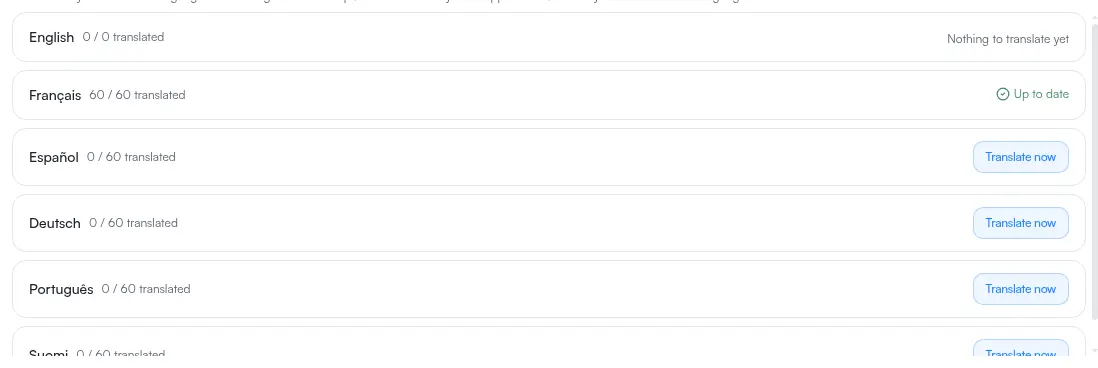
Outdated deserves its own sentence, because the word suggests age and the state is not about age. A translation goes stale when the original it was made from changes. Edit a journey note you had already translated, and the translation of that note is now describing something you no longer wrote. Nothing decays on a timer, and a translation you have not touched will stay current indefinitely. Translate your content is the reference page for the panel and its states.
What translation does with the original
A translation is added alongside your original text. It does not replace it, overwrite it or move it, and your original remains the record.
It is also worth being precise about the other half of that, because the imprecise version frightens people. There is no control that removes a translation once it exists — no revert, no delete, no undo on the panel. That is not the same as losing anything: what you wrote is still exactly where you wrote it. The honest summary is that translation here is additive and one-way. Starting it costs you nothing you already had, and it is not a thing you can take back afterwards.
If a language disappears from the list
The set of interface languages ATSReady offers can change, and a row can vanish from the panel between one visit and the next. When that happens, the product's own line is the reassuring one: Translations you made into languages we no longer offer are kept, not deleted.
So a missing row means the panel has nothing to show you, not that anything was thrown away. The translated content is still stored against your record, and if that language returns to the roster its row comes back with it. Language settings overview is where the relationship between the interface, your content and a resume's own language is set out in one place — which is the page to read next if the boundary this walkthrough describes is still not where you expected it to be.
If what you are actually preparing is a document for somewhere else, You are applying to a job in another country takes the résumé-side decisions in the order they have to be made.