

What the activity log shows
Learn what ATSReady Activity records, how entries are grouped, and how to read list and detail statuses.
On this page
The activity log is ATSReady's record of background work, grouped by when it ran.
What you get from one entry
- a current list status
- a detail view with per-step results
- enough context to decide whether to wait, continue in the originating workflow, or restart there
How the list is ordered
Entries run newest first, but the list is not one flat sequence. Anything still running is pinned in its own In progress block at the top, whatever time it started. Everything below that is grouped under a date heading: Today, then Yesterday, then a dated heading for each earlier day.
So an entry that seems to be missing from the top of the list has usually finished and dropped into the day it belongs to.
How to read the list
The list uses a compact status set:
- Queued
- Stuck
- Running
- Completed
- Failed
- Cancelled
How to read the detail pane
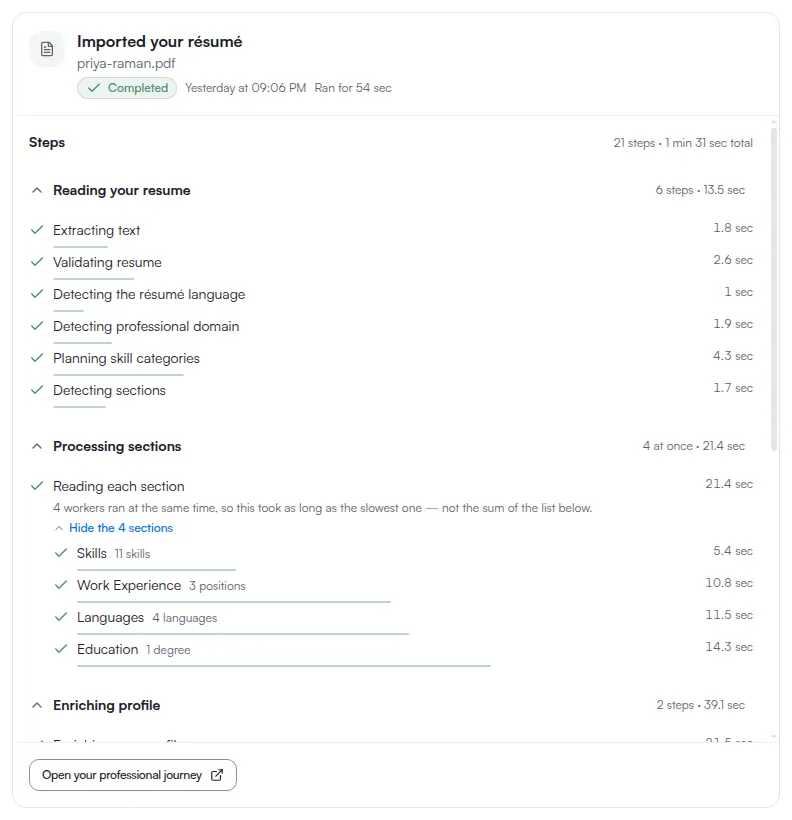
Open an entry to see the job-level state and the step-level state.
For a stalled queued job, the detail pane shows both of these at once:
- Pending for the underlying job state
- Appears stuck for the observation that it has waited too long
The two are shown side by side rather than one replacing the other, because a stall is a flag on a pending job and never a state of its own. In the list, that same pair is compressed into the single word Stuck.
Appears stuck is decided on the server and stored against the job, not counted by the page you are looking at. Reloading does not reset it and opening the entry on another device shows the same thing, because the flag travels with the job rather than with the browser.
Step rows use their own smaller vocabulary, including:
- Completed
- Running
- Failed
- Not started
- Not run
- Not needed
- Not recorded
For exact definitions, use Status words.
What Activity is for
Activity tells you what happened. It is not the page that changes the source record, edits a resume, or rewrites identity content. When you need to act again, return to the workflow that started the job: Import a resume, Regenerate Professional Identity, or Translate your content.