

You need a cover letter tonight
Generate one against a saved job, or write it yourself. ATSReady can refuse for three different reasons and only ever shows you one of them, so this page lists all three.
On this page
The posting closes tomorrow, you have a resume you are happy with, and the only thing left between you and a submitted application is a letter. ATSReady will write one for you, and underneath that it is an ordinary text box you can type into. Which of the two you get tonight depends on your plan, on how much you have had written today, and on whether this job has a resume behind it — and the product will only ever tell you about the first of those that applies.
This walkthrough runs the path in order. Cover letters is the reference page for the section; this page is the sequence, and the places it stops being obvious.
Open the letter on the job
A cover letter in ATSReady belongs to a saved job, not to your account and not to a resume. There is no library of letters to browse, which is why the first step is to find the job rather than the letter.
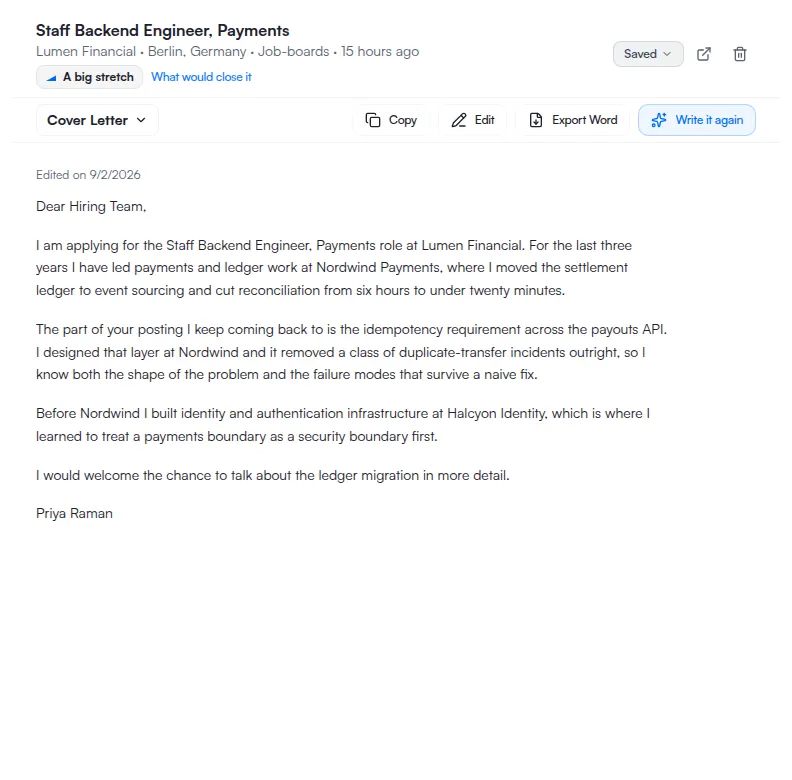
Open it from the board and move the detail pane to the Cover Letter section. The pane has a menu in its header rather than a row of tabs, and that menu is labelled with the section you are on — so it does not read Cover Letter until you have arrived. Job details sections lists every section it holds.
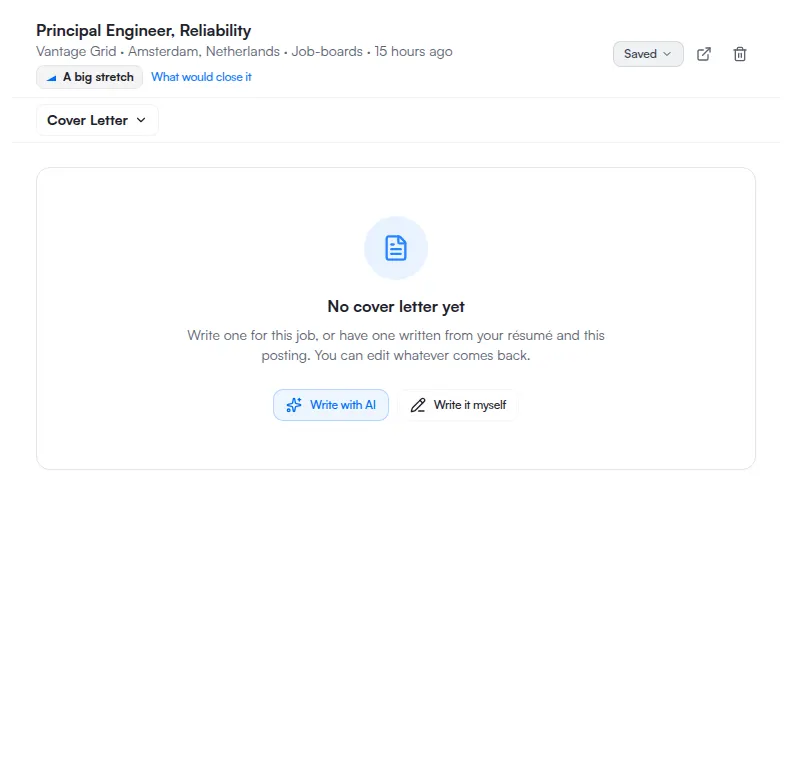
If nothing has been written yet, the section says No cover letter yet and puts the choice in front of you in its own words: Write one for this job, or have one written from your résumé and this posting.
Writing it yourself
Take Write it myself and the section becomes an editor with an empty letter in it. The placeholder is the opening line of a letter — Dear hiring team, — and it is placeholder text, not content: it goes the moment you type and is never saved on your behalf.
Write, then Save. Cancel leaves edit mode and discards what you have not saved. Save stays inert until the draft differs from the stored letter, so a letter you opened, read and closed is not quietly rewritten with an identical copy.
This path sits deliberately outside every check described below. The refusals govern having a letter written for you; none of them touches the text box. On a night when generation will not start you can still write, save, copy and export. A lock here does not lock the letter, it locks the author: ATSReady meters the capability it supplies, not the place you put your own words.
One caution: ATSReady's warning about unsaved edits does not cover the browser's own Back and Forward buttons — the unsaved changes warning sets out where the guard reaches — so save before you leave the job.
Asking ATSReady to draft it
Write with AI starts a draft. While it runs the control reads Writing… and the section says what it is doing: Reading your résumé against this posting. That sentence is the whole model of the feature: the letter is written from a resume and a posting, read together, and everything that can go wrong with it goes wrong on one side or the other of that pair.
Which resume it reads therefore matters, and a job can have its own — see Tailored resumes. So does that resume's language, if you are applying somewhere that does not read in English: Résumé language.
When the draft lands it is marked as written with AI, carrying the date; a letter you have since edited is marked as edited instead. Write it again replaces the current text with a fresh draft, so copy anything worth keeping out of the old one first.
The three reasons it can refuse
The section resolves one visible block at a time, in a fixed order — entitlement, then rate limit, then a missing source resume. Here is each one as it looks when it is the one you get.
- Your plan does not include it. The block is headed Writing it for you — from Pro and offers See plans. It names the tier it wants, so this page does not have to; the rest is on What each plan includes.
- You have had enough written for now. The block says Writing comes back when the limit resets. Anything already written is untouched. That second sentence is the important half: a spent allowance never reaches back into letters you already have. Why something is locked distinguishes a feature you do not have from an allowance you have spent.
- There is no resume to write from. The block reads Nothing to write from yet and offers Go to the Resume section. It is the only one of the three you can clear tonight without changing anything about your account.
Why you only ever see one. These are not three phrasings of a single message. They are three states with three different fixes, and the section draws the first unresolved one and stops. The consequence catches people out: clearing one refusal can reveal the next. Upgrade, and the limit may still be there. Wait for the reset, and the missing resume is still missing. That is not a defect — the alternative is a screen reciting everything wrong with your account whether or not it is in your way tonight — but the honest reading of one of these blocks is this is the first thing in the way, never this is the only thing in the way. If generation still will not start after you fix something, read the block again. It will be a different block.
And in all three cases, the editor is still there. Take Write it myself and write the letter.
Saving, and what save will not do
Save writes the letter to the job and nothing else. It does not export, it does not copy to your clipboard, and it does not touch the resume the draft was read from — a generated letter is a new document, not an edit to something you already had.
If a save fails you are kept in edit mode with your text intact and told so, and a failed generation behaves the same way. Copy puts the letter on the clipboard and confirms with Copied, which is what you want when the employer asks for it pasted into a form rather than attached.
Exporting the letter
Export Word writes a .docx file from the saved letter, not from what is on your screen.
Save first. An unsaved paragraph is not in the file, and nothing warns you at export time, because
from the exporter's point of view the letter it read was complete.
While it runs the control reads Exporting…. Export is not a fourth thing that can refuse you — no plan withholds the Word file, and What each plan includes is where the export rows sit.
So the route at the hour you are probably reading this is: open the job, take the Cover Letter section, write it yourself if generation will not start, save, export or copy. A letter you wrote by hand submits as well as one that was written for you.
If the resume behind it also needs work before you send either, You are applying to a job in another country covers the settings that decide how the document arrives, and Export a resume covers the file itself.