

Use the sidebar
Understand the current ATSReady desktop sidebar, its top-level rows, and where settings and documentation live.
On this page
The desktop sidebar is the main navigation for ATSReady.
Default sidebar rows
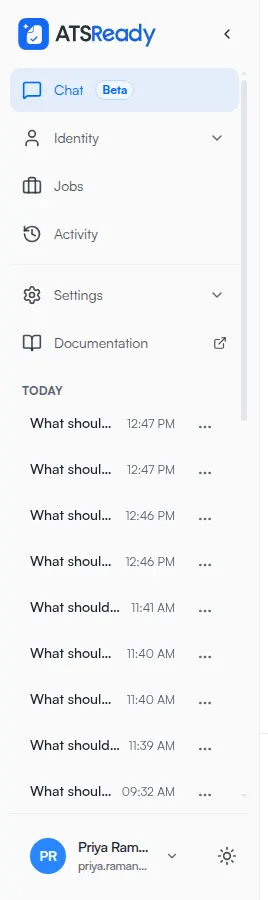
On a fully set-up account, the sidebar shows these top-level rows:
- Chat — marked Beta
- Identity
- Jobs
- Activity
- Settings
- Documentation
Every row above opens a part of ATSReady this documentation covers, except Documentation, which leaves the app: Chat, Professional Identity, Jobs, Activity, and Settings and account.
Rows that open sub-pages
Identity and Settings are the two rows with sub-pages, and each row does two things:
- Selecting the row itself navigates. Identity goes to Overview; Settings goes to General.
- Selecting the chevron at the end of the row opens or closes the sub-rows without navigating anywhere.
Identity holds Overview, Skills, Résumé, and Journey. Settings holds General, Account, and Preferences.
Those sub-rows have their own pages here: Professional Identity skills, Resumes, Professional Journey, and, for the three settings routes, Where each setting lives.
The chevron is there whether or not you are already inside the group, so a row announces that it has pages under it before you visit it — which is how you find Preferences without opening General first.
Important route details
- The row labeled Chat opens the
/dashboardroute. - Documentation is an external row that opens the docs site, not an in-app page.
- When you are on Journey, the Identity group stays marked current because Journey belongs to
that group, even though its address shares nothing with
/identity.
Sidebar during setup
If setup is still incomplete, the sidebar is narrower in scope. It shows only Get started, Activity, and Settings. Finish setup later lists everything an unfinished account can still open, which is wider than that rail.
What is not in the account menu
The account menu no longer contains Settings or Profile links.
That menu is for account status and sign-out actions. Settings navigation now lives in the sidebar.
Related pages
- Collapse the sidebar
- Navigate on a phone
- What this browser remembers, which is where your expanded and collapsed sidebar groups are stored