

You have a resume file and nothing else
Sign in, import the file, check what ATSReady read out of it, choose a template, and export a PDF you can send. Nothing on this path needs a paid plan.
On this page
The short version
- Sign-in is Google. There is no ATSReady password to create.
- A new account lands on setup rather than on the dashboard, and setup opens on the step that asks for the file.
- Choosing the file only stages it. The control inside the upload card is what starts the import.
- The import is a background job. Closing the tab does not cancel it, and the activity log is where you find it again.
- Resume import, the resume builder and both export formats are included on every plan.
What you need
- The resume file, in whatever format you already keep it in. The accepted types and the ceiling for each are on File types and size limits.
- A Google account. ATSReady issues no password of its own, so the account you sign in with is one you already have. Sign in covers the flow and what to do when it will not complete.
- Time to read the result rather than to wait for it. The reading is the part that needs you.
Sign in and land on setup
A new account does not land on the dashboard. It lands on setup, and setup opens on the step that asks for the file.
There are four steps — Resume Upload, Contact & Links, Work Eligibility and Work Preferences. This walkthrough needs the first one.
The order is a promise rather than an arbitrary sequence, and the step says so itself: Upload your resume first so we can prefill the steps that follow. Everything the file contains that a later step would otherwise ask you to type is carried forward. Skipping the upload does not skip work. It moves the work onto you. First-time setup walks the wizard step by step.
Upload the file, then start the import
Choose the file from the upload panel. Choosing it only stages it. The import control inside the card is what starts the processing, and the footer carries no Next to press instead, so it is easy to walk away from this screen without having started anything.
On an account that already holds resumes, the same screen offers those under Your resumes. A new account has nothing in that list, so the file picker is the only route through.
Check that the file is the resume rather than a covering letter or a scan of a printed page. A file ATSReady cannot read as a resume is refused with This file doesn't appear to be a resume. Please upload your resume. That costs you nothing but the round trip, and it is easier to avoid than to diagnose.
Warning — a legacy
.docis offered and then refused. The file picker lists it alongside the types the import actually accepts. The file uploads, and the import rejects it. Open it and save it as.docxor PDF first. Import a resume owns the accepted list.
Two things happen when the import starts. ATSReady stores the file, and it creates a background job to read it. The screen changes to the import view, and from that moment the reading is not something the page in front of you is doing.
Watch it work, or do not
The screen looks like a progress bar and behaves like something else. The extraction is a background job. The import view subscribes to that job and reports what it hears. It is not driving the work, so nothing you do to the view stops it. The screen offers Keep exploring while this runs for exactly that reason, and closing the tab, navigating away or losing the connection does not cancel an import that has started.
The view moves through stages rather than through one bar. Extracting your career history… is the file being read. Building your Professional Identity is a second, separate piece of work that runs on what the extraction produced.
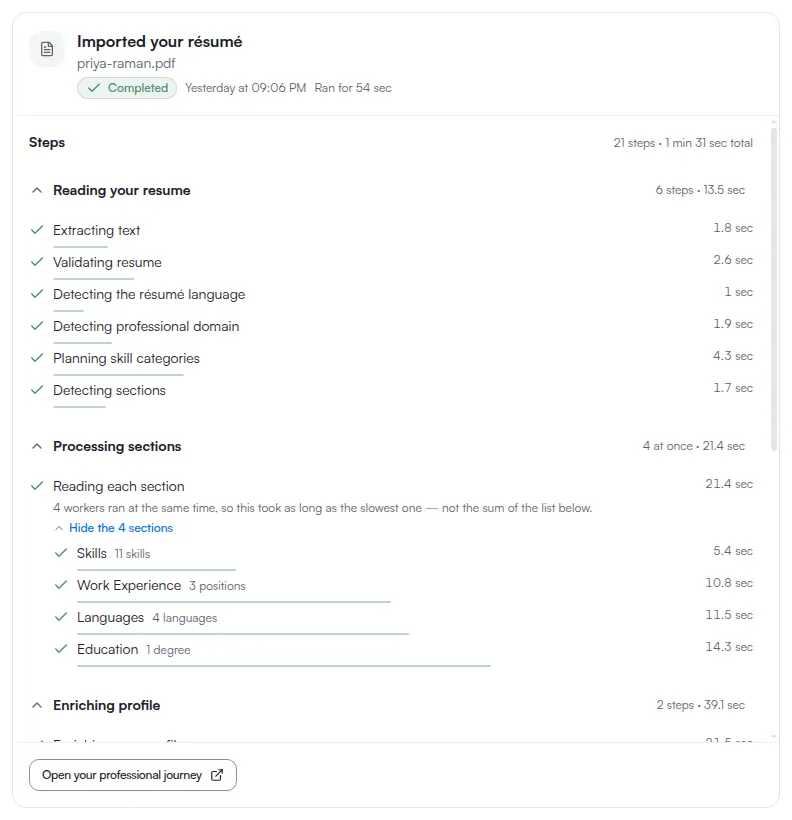
Note — "Resume imported successfully" is not a failed import. The two pieces of work can finish differently. Your Professional Identity is ready means both completed. Resume imported successfully means the extraction landed and the identity generation did not. Your career history is saved either way.
Finish or skip the rest of setup
When the import hands back to setup, it shows what it is bringing with it under We'll carry these into the remaining steps, alongside the whole rule for how the carry-over behaves: Only the fields your resume had, and only where you haven't entered something yourself. Nothing you have typed is overwritten by anything the file contained. The import fills gaps. It does not arbitrate.
The three remaining steps are not decoration, but they are recoverable at any point afterwards.
Tip — Skip for now is on every step. Until the wizard is finished, the resume editor is not one of the screens you can open; ATSReady can send you back to setup instead. Skipping is how the wizard is designed to be used, and the steps you skip stay reopenable. Finish setup later lists what stays available while setup is unfinished.
Check the skills
What the import read is visible in two places, and they answer different questions. Start with skills.
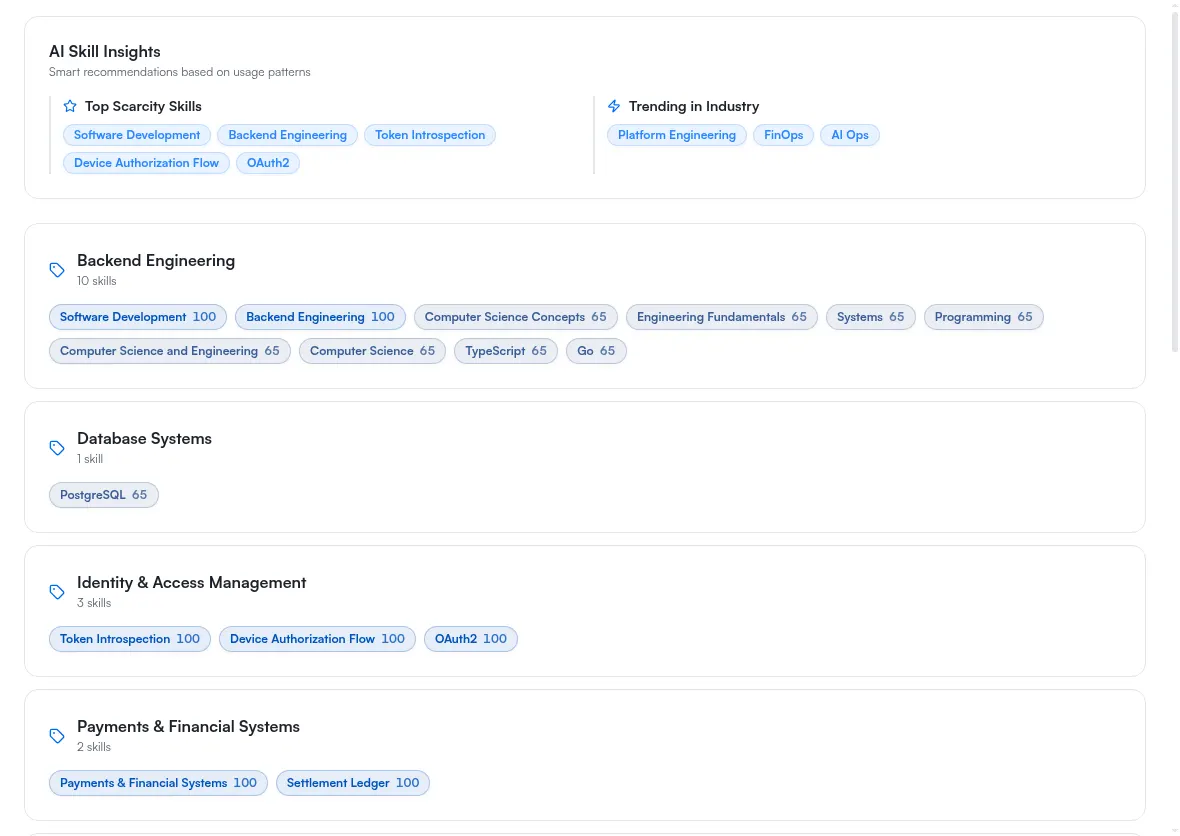
Skills are the quickest read on whether the extraction understood the file, because they are derived rather than copied. A file that produced a plausible spread of skills produced a usable record. Professional Identity skills explains the grouping and what to do when the categories look wrong.
Check the document
The editor is where you check the record itself.
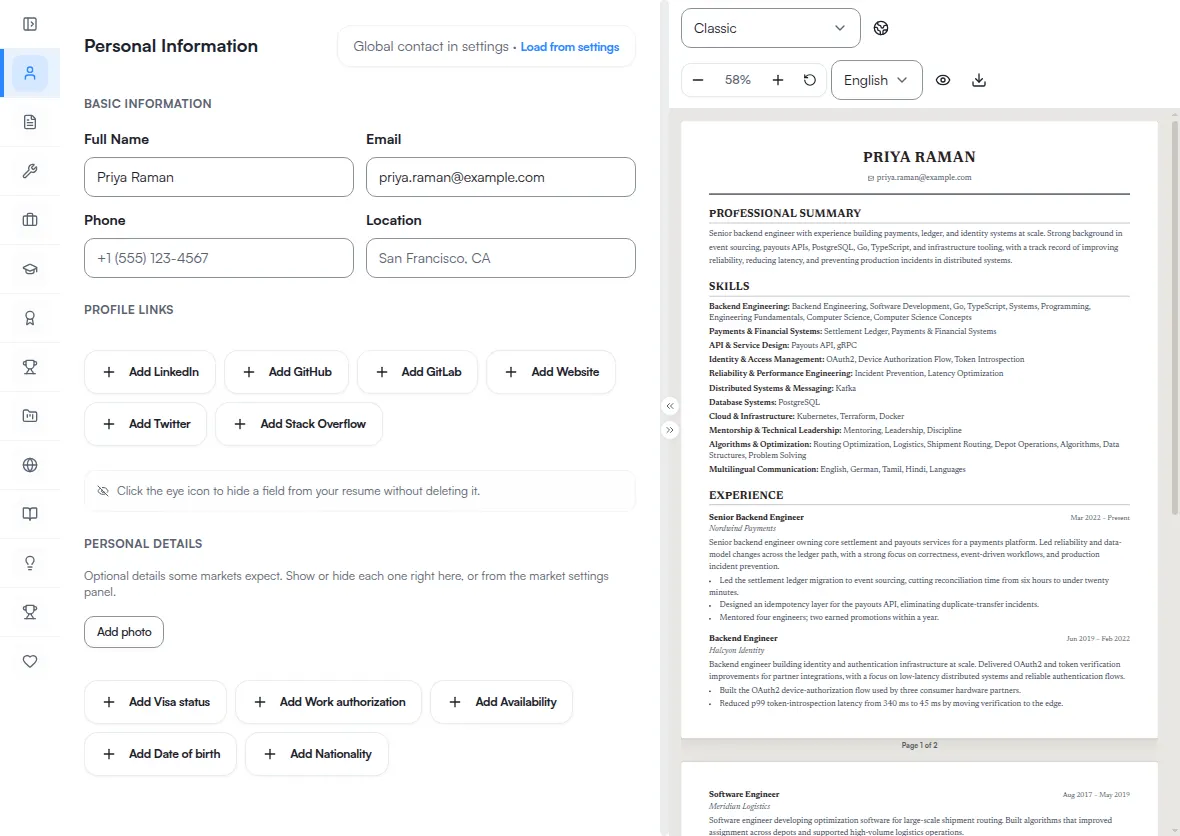
Work down the sections and confirm that what the file said is what the record now says. Dates in particular: a date the extraction could not read is a gap rather than an error, and nothing on this screen will flag it. What a resume includes lists the sections to expect, and Edit a resume covers the editor.
Choose a template
A template changes how the document is presented and not what it says. Switching one does not rewrite content, does not lose a section, and can be done as often as you like before you export. Try more than one rather than accepting the default.
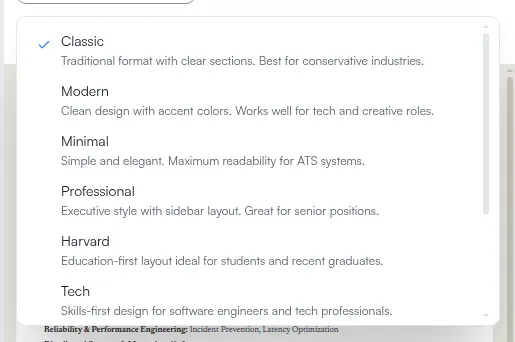
What they differ on is layout, whether they carry a photo, and which submission channels they suit. Those are the reasons to choose deliberately rather than aesthetically, and they are set out on Resume templates.
Export the PDF
Export takes what the preview is showing. Confirm the template and the market settings first, then open the export control and choose the format.
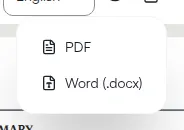
PDF is the format most applications ask for. Word is on the same control. Export a resume covers what export reads its inputs from and what to change when the output is not what you expected.
The path is finished here. A file went in, a record came out, and a document you can send came out of the record.
If the import did not finish
Check the activity log first. It is the account's own record of the run, and it distinguishes between work still in progress and work that ended.
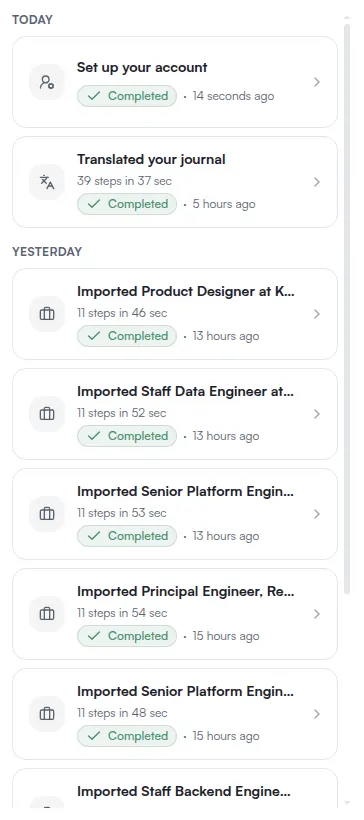
This is where a background job reappears once you have left the screen that started it. You do not have to keep the import view open to find out how the run ended. What the activity log shows explains the status words and the detail view.
If the import view reports Import processing hasn't started yet., the job was created and never picked up. Retry from the import workflow rather than waiting, and use What to do when a background task is stuck for the full check.
If the file was refused, the message says why on the screen that refused it. The two ordinary causes are a file ATSReady could not read as a resume and a file over the ceiling for its type. Import a resume and File types and size limits own those.
If the extraction finished but Professional Identity did not, nothing is lost and nothing needs importing again. The career history is stored. Continue into the editor. Rewriting the identity content later is a separate action and one of the AI features a plan can gate — see Regenerate Professional Identity.
Questions people ask
Do I have to pay for any of this? No. Resume import, the resume builder, PDF export and Word export are on every plan. What each plan includes is the canonical table.
Can I close the tab while it is importing? Yes. The import is a background job and it keeps running. The activity log holds the record of it.
Why was my file refused? Either ATSReady could not read it as a resume, or it was over the
ceiling for its type, or it was a legacy .doc. The screen that refused it says which.
It says "Resume imported successfully" and not the other message. Did it fail? No. The extraction landed and the identity generation did not. Your career history is saved.
Can I import a different resume later? Yes. A second import de-duplicates experience, education and languages against what is already in your record. It does not de-duplicate awards, certifications or projects, so those arrive a second time and you remove the copies by hand.
Do I have to finish setup before I can use the editor? Yes. While setup is incomplete, only a short list of screens opens and the editor is not on it. Skip for now is on every step, so finishing is not the same as filling everything in.