

Push Professional Journey content to a resume
Understand what an ATSReady push writes to a resume, which resumes it can target, and what each per-resume result means.
On this page
Push takes what your professional journey already holds and writes it onto a resume that is missing it. It writes in two halves, and only one of them involves AI.
What push writes
Facts are the records you wrote down yourself — companies and roles, education, certifications, publications, patents, awards, projects, languages, interests — projected into the shape a resume stores. No AI touches this half. A row is either a new entry on the resume or a replacement for a value already there, and the preview says which.
Bullets are written by the AI service from your notes, one run per company, so a record with several employers takes a moment longer than one with a single employer. Every bullet says which note it came from. A bullet the service could not attribute to any note is marked as unsourced and is ticked like every other row — untick it unless it is true of you.
The two halves are independent. If the writing service does not answer, the push still goes ahead with your facts rather than failing whole, and it tells you the bullets are missing. A plan that does not reach the writing service produces the same result, and adding notes will not change it — see Why something is locked.
For journey Interests, pushed output lands in the resume's hobbies content — What a resume includes lists every section a push can write to.
Where you start it
Push is a page action, not a per-entry one. The Push to résumé button sits in the Journey page header, and it pushes everything in your journey that the resume you choose does not already have.
Beneath it a sentence says what is outstanding. When there is nothing outstanding that sentence reads Everything is on your résumé and the button is inert — it stays visible and explains itself rather than disappearing. If you have no resume at all, the button is Create a résumé instead, and it leads to Import a resume, which is the only way a resume gets created.
How resume choices work
The sheet opens on the target list, in three groups:
- Base résumé — the default target. Everything you push lands here unless you say otherwise.
- Tailored — job still in …, where the heading ends with the name of the first column of your board. These are offered because the job each one was written for is still sitting in that column. Selectable, but not preselected.
- Tailored — locked — shown so you know where they went, and not selectable. A tailored resume locks when its job moves out of that first column, and each row names the stage the job moved to and the stage it has to be back in.
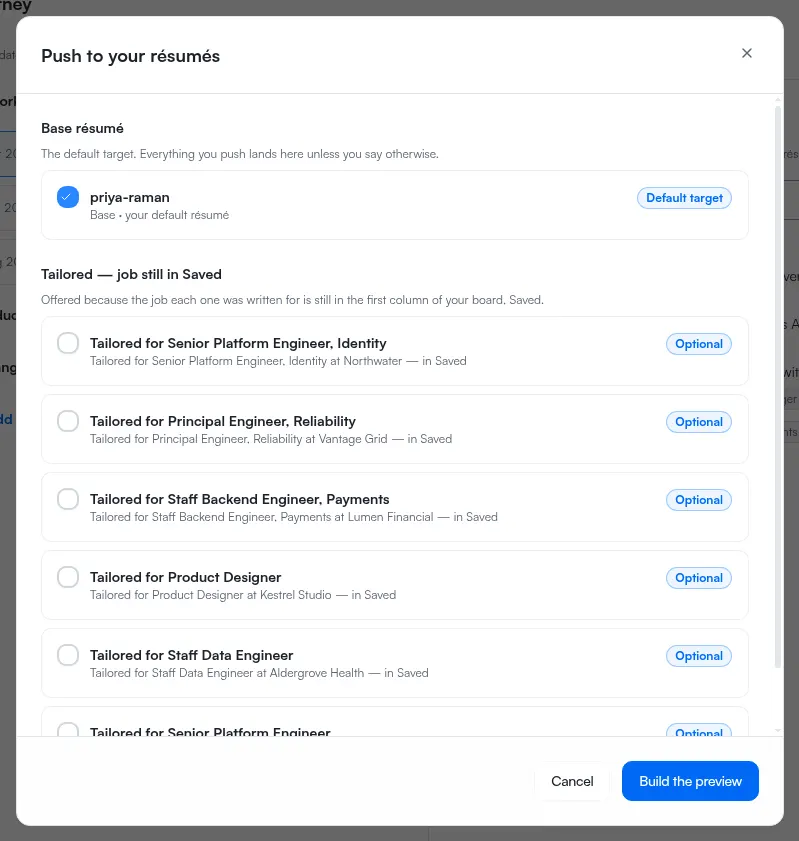
You can select more than one target. They are written one at a time, and the sheet says which is waiting.
The preview is where you decide
Build the preview moves the sheet to its second screen, headed What will change. This is not a confirmation step — it is the only place the individual changes exist, and every row is a tick you can clear. A target that needs nothing is marked Already up to date and is skipped rather than reopened and given a new version for a change that is not there.
Push then applies what is still ticked, and the sheet's third screen reports each target as it lands. Closing the sheet before you push discards the preview and every bullet generated for it.
What each result means
| Outcome | Meaning |
|---|---|
| Changed | ATSReady wrote the selected changes to that resume |
| Skipped — already up to date | There was nothing left to write to it |
| Not written — this résumé changed while the preview was open | The resume moved on after the preview was built, so nothing was applied |
| Not written — its job has moved down your board | The target locked between the preview and the push |
| Not written | The write did not complete for that target |
The stale result is a safety check rather than a fault. ATSReady refuses to write a preview onto a resume that changed after that preview was built, because the preview no longer describes it. Rebuild the preview and push again.
How to use push
- Open Journey and select Push to résumé in the page header.
- Choose the target resume or resumes.
- Select Build the preview, and read what will change.
- Untick anything you do not want written — in particular any bullet marked as unsourced.
- Select Push, and review the per-target results.