

You did something at work and want it on record
Write it up in Professional Journey and push it into a resume. Clicking a row is the move the whole page depends on, and nothing on screen tells you that.
On this page
Something happened at work that belongs on your resume. You shipped the migration, you took over the on-call rota, you presented to the board. Right now it exists in your memory and in a Slack thread, and in six months it will exist in neither.
Professional Journey is where it goes. This walkthrough runs it from the thing you did to a line on a document, and spends most of its length on the two places where people get stuck: the click that nothing prompts you to make, and the difference between what you wrote and what the product writes for you.
Pick the thing it belongs to
A journey entry is not a free-standing note. It attaches to something in your record — a job, a degree, a certification, a project — and the outline down the left of the page is that record, grouped by category.
Start by finding the thing it belongs to rather than by looking for somewhere to write. A migration you shipped belongs to the role you shipped it in, which lives under Work Experience. A talk you gave belongs to whatever you gave it for. Professional Journey categories lists the categories and what each holds; the point here is only that the entry comes first and the note comes second.
If the thing itself is not in your record yet, add it before you write about it. There is no route from a note back to an entry it was never attached to.
Clicking the row is the move
This is the part the page does not tell you, and it is the whole mechanic.
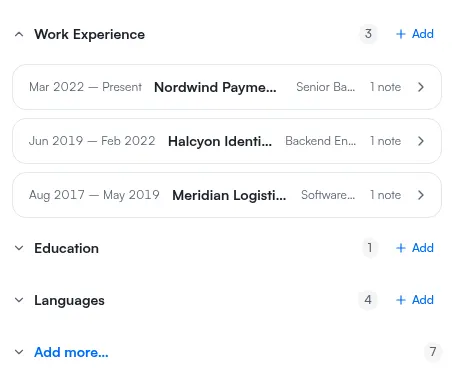
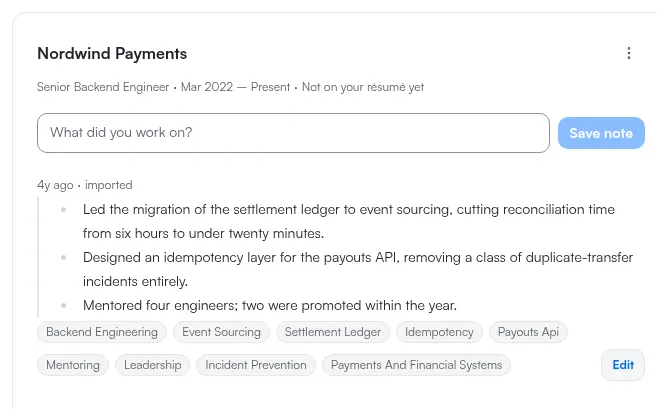
There is a single detail panel for the whole page, not one panel per row and not an expander inside each entry. Clicking a row in the outline is what loads that row into the panel; until you click one, the panel reads Nothing selected and offers the only instruction the page ever gives you: Pick anything in your outline to read its notes, edit it, or add to it.
That design is defensible — a single panel keeps one thing in view at a time and makes the outline a genuine index rather than a stack of open accordions — but it does mean the page looks inert on arrival. Nothing pulses, nothing prompts, and a reader who expected an obvious "add a note" button sees a list and an empty panel. If the page looks like it is doing nothing, it is waiting for a selection.
Two things in the outline are worth reading while you are there. Entries collected under Needs dates carry no start date yet, and the group states the consequence plainly: These are not on your résumé until they have a date. Nothing was rejected and nothing is broken — a date is optional when an entry is saved, and the group is a reading aid. Why a journey entry needs dates owns the group and the date format it expects.
Write the note
With the entry selected, the panel shows its own fields and its Notes. The first field is named for the category rather than generically: under Work Experience it is Role, under Education it is Degree, under Certifications and Awards it is Issuer. There is no field called "title" anywhere on this page, which is worth knowing before you go looking for one.
Add the note to the entry you selected. What makes a note useful later is not length; it is that it carries what you did, where you did it, and what changed as a result. A note that says led the migration gives the rest of the product almost nothing to work with. A note that says what moved, by how much, and over what period gives it a sentence. Add notes to a Professional Journey entry covers the composer and how notes are saved.
The panel also tells you where the entry currently stands relative to your document, with On your base résumé or Not on your résumé yet, and existing notes collapse behind Show more notes once there are enough of them to crowd the panel.
What the note becomes
A note is not a resume bullet, and the product is unusually clear about the difference — clear enough that it says so on the screen where it matters.
When you push, the preview splits into two halves. Facts are the records you already wrote, carried across as they are; the product's own caption under that half reads Records you have already written down. No AI touches this half. Bullets are written for you, by a service, from the notes you wrote — one run per company.
That split is the answer to the question people actually have, which is how much of the output is theirs. The dates, the employers, the titles and the entries are yours and are moved rather than generated. The prose that turns three notes into a line on a resume is generated, from your notes and from nothing else. Neither half invents an entry you did not write.
Notes feed more than the push. They are the evidence Professional Identity reads when it generates your skills and your written summary, which is why a well-written note improves several things at once. What Professional Identity is describes what it builds out of the same record.
Push it to a resume
Pushing is the step that takes journey content into an actual document. The control on the entry reads Push to résumé.
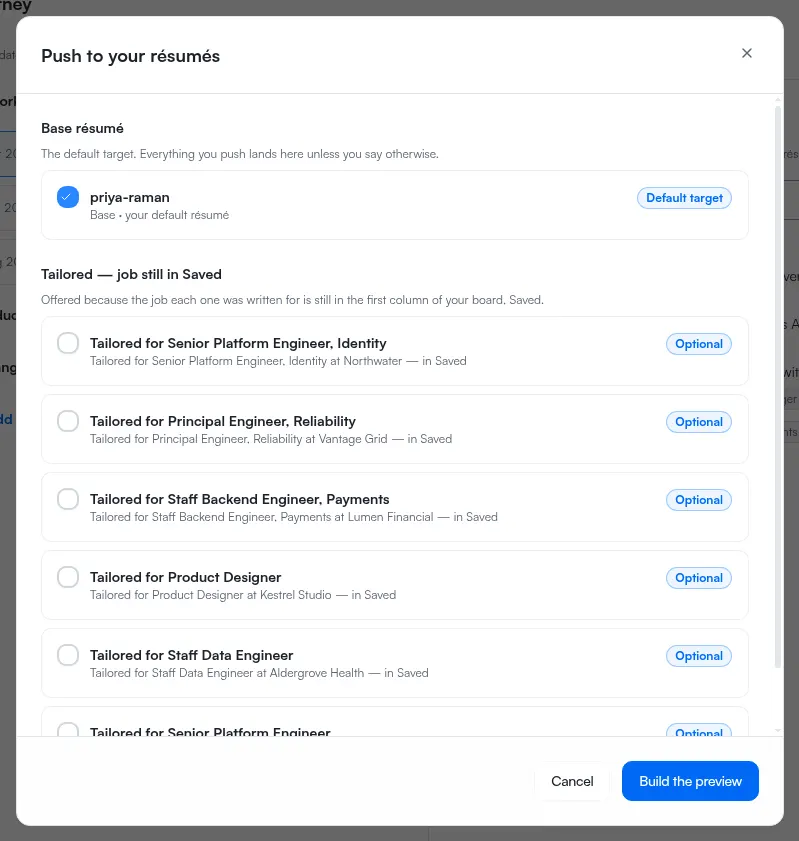
The flow is deliberately two steps. Build the preview assembles what would be written without writing it, so you read the Facts and the Bullets first; Push is the step that writes. Nothing reaches a document between those two clicks, which means you can build a preview to see what a push would do and then walk away from it.
Each target reports its own result, and the three you will see most are Changed where the push wrote, Skipped — already up to date where there was nothing new to write, and Not written where it did not. Push Professional Journey content to a résumé is the canonical page for the targets it offers and what every result means.
What the push does not do
It does not touch your notes. The note stays on the entry, in your words, whatever the push wrote from it. Pushing the same entry again later does not consume it.
It does not replace your document. A push adds; it does not rewrite sections you edited by hand, and it does not delete anything already there.
It does not overwrite a resume that moved underneath it. If the document changed after the preview was built, the result reads Not written — this résumé changed while the preview was open rather than writing what is now the wrong thing. That is a safety check working, not an error — build the preview again and read it.
And it does not carry an entry that has no date. An entry sitting under Needs dates stays there until you add one, however good the note on it is.
Once content is on the document, the resume editor is where it becomes a finished section rather than an appended line. Edit a resume covers the editor, and What a resume includes lists the sections journey content can land in.
If the entries you want to push are all sitting under Needs dates after an import rather than because you never filled them in, Your import finished and it says 0 years of experience is the walkthrough for that case.