

Collapse the sidebar
Reduce the ATSReady desktop sidebar to its compact state and understand which navigation elements disappear until you expand it again.
On this page
You can collapse the desktop sidebar to a compact icon rail.
Collapse the desktop navigation
- Select the chevron at the top of the sidebar, beside the ATSReady wordmark. It is icon-only — its name, Collapse, is announced rather than printed, because a visible label does not fit the square it sits in.
- Use the compact rail if you only need top-level navigation.
- Select the same control, now named Expand, to restore the full sidebar.
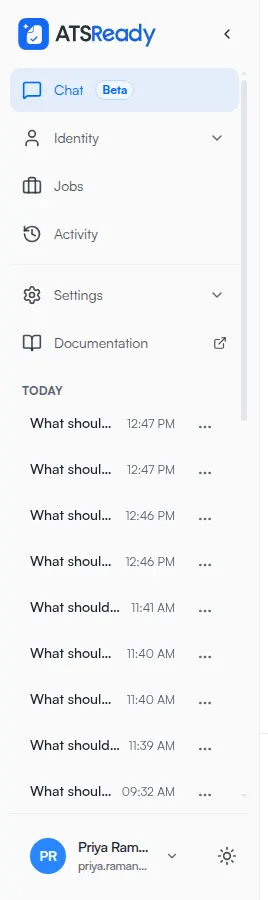
What changes in compact mode
- sub-pages are not shown
- the conversation list is not shown
- top-level rows stay available
The conversation list belongs to Chat, so collapsing the rail hides your threads without closing them.
When the control is not there
The collapse control is absent while setup is incomplete. That sidebar has no conversation list and a short set of destinations, so there is nothing worth collapsing to — and a rail that could be collapsed but not expanded would be a state you could not get out of. See Finish setup later for what that state is.
How the current page is marked
Exactly one row is marked as current. Normally that is the sub-row you are on, not its parent.
In the compact rail there is no sub-row to carry the mark, so the parent row takes it instead. A page under Professional Identity keeps Identity marked current after collapse.
Related pages
- Use the sidebar
- Navigate on a phone
- What this browser remembers, which is where the collapsed state itself is kept