

How the job board works
How the ATSReady jobs workspace stores state in the URL and combines the job rail, stages, filters, and detail pane.
On this page
The ATSReady jobs workspace keeps its view state in the URL so the page is reload-safe, back-and-forward safe, and shareable.
What is in the URL state
The workspace can keep these values in the query string:
- selected job,
- active detail section,
- search query,
- stage filters,
- sort mode,
- geo filters,
- and the “only jobs above my level” flag.
Copying the address bar copies the view, not just the page.
What is on the page
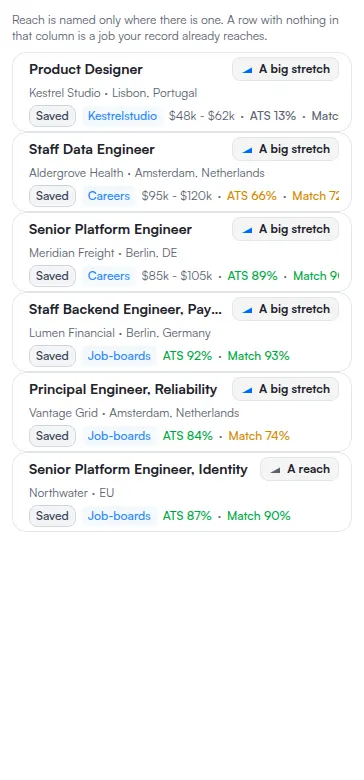
- A left rail with processing items and saved jobs.
- Stage-aware rows colored from the current tracker-column order.
- A detail pane for the selected job, described on Job details sections.
What an empty board shows
Before you have saved anything, the rail is replaced by a panel that explains what the board is for and offers two ways to fill it. The first is Add a job, which opens the same dialog described on Add a job. Under it sits Install the ATSReady Chrome extension, which opens the extension's Chrome Web Store listing in a new tab — the same listing Install the Chrome extension links to, and that page covers what happens after you follow it. On a plan that does not include the extension, an upgrade card sits below both.
Where stage order matters
Rows take their color from the current tracker-column order, so renaming or reordering a column changes the board rather than breaking it.
One behavior elsewhere reads the same order for a different purpose. A tailored resume becomes read-only once its job has moved out of the board's first column, whatever that column is called. The question is only whether the job is still in the first position, not which stage name it carries — see tailored resumes.