

Sign in
Use the current ATSReady sign-in flow, understand why there is no product password, and know what happens when you open the sign-up link.
On this page
ATSReady currently uses Google sign-in. There is no separate ATSReady password. The Chrome extension uses the same account and the same method.
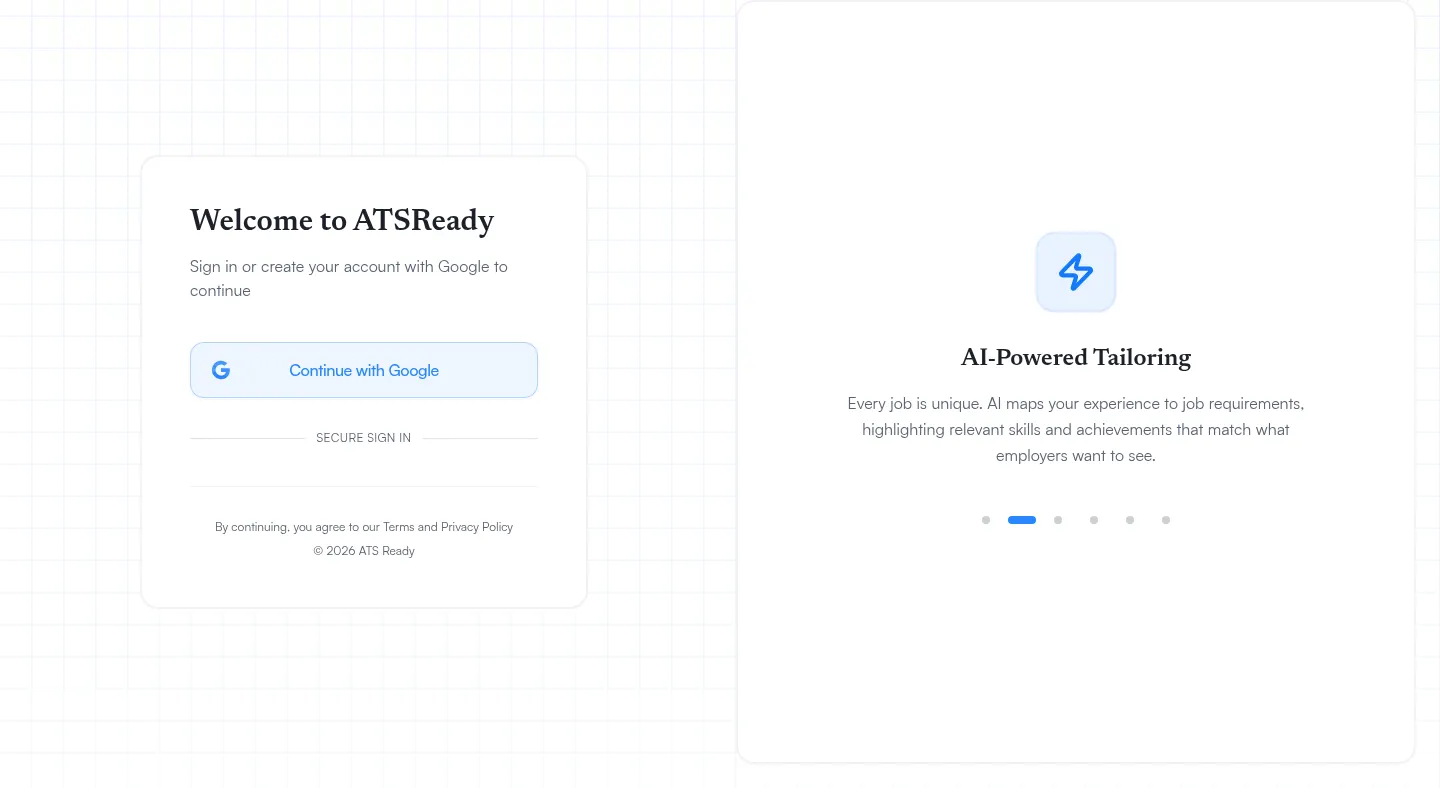
Sign-in steps
- Open the ATSReady sign-in page.
- Select Continue with Google. The same button creates the account and signs you back into an existing one, which is why there is no separate sign-up form.
- Finish the Google authentication flow.
- Return to ATSReady.
What to expect
- The
/signuproute redirects to the same sign-in page as/login. - There is no ATSReady password-reset flow because ATSReady does not issue a separate product password.
- On the Account page, your email address is shown as read-only with the label Via Google.
If you cannot get in
- Start again from the ATSReady sign-in page instead of an old tab.
- Make sure you are using the same Google account.
- If you can sign in but the app sends you back to setup, continue with Finish setup later.