

Export a resume
The ATSReady resume export formats, where export language appears, and what to check before downloading.
On this page
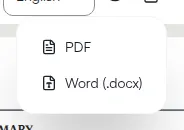
ATSReady exports resumes as PDF or Word (.docx).
How export works
- Open the resume.
- Confirm template and market settings.
- Open the export control in the toolbar above the preview.
- Choose PDF or Word.
If translated variants are available for the resume, the toolbar can also show an export-language picker. Résumé language sets out the order ATSReady resolves that choice in when you have not made it explicitly.
What export uses
Export follows the same presentation inputs as preview: template, market settings, hidden sections, and the active export language.
Export does not save. It reads the document as it is on screen, including changes you have not stored, and leaves the stored resume exactly as it was. A correct file is therefore not evidence that your edits survived — see Edit a resume.
Export is available on the preview-first surface too, so you can download a document from a phone or a narrow window even where the editing controls are absent.
If the output is wrong
Change these before exporting again: