

Sign in to the extension
How the ATSReady Chrome extension signs in with Google, checks extension access, refreshes plan and preference state, and chooses its language.
On this page
The ATSReady extension signs in with a Google account through Chrome's identity flow, then checks whether your account has Chrome extension access. If it is not installed yet, Install the Chrome extension is where to start.
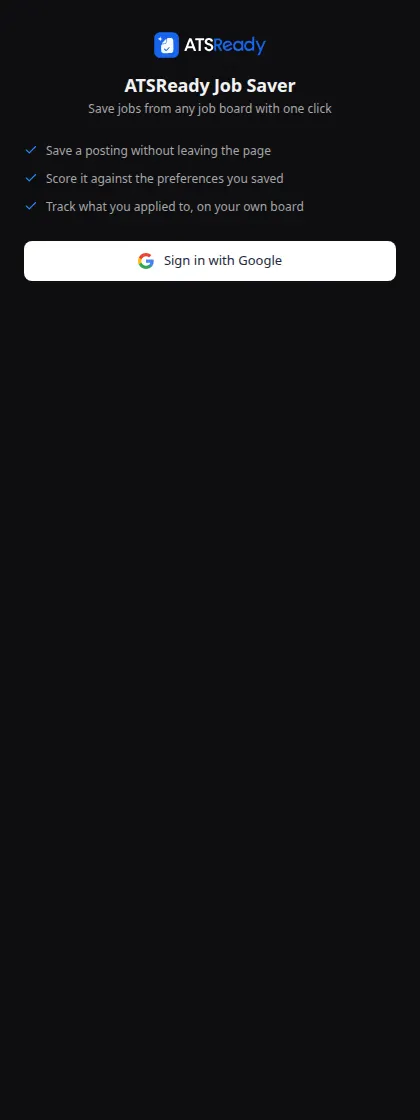
Signing in
The panel's button reads Sign in with Google, and reads Try again with Google after a failed attempt. Google is the only sign-in method the extension offers, the same as the ATSReady web app, so there is no email-and-password or other provider path here. Sign in with the Google account your ATSReady account is on.
What happens after sign-in
When sign-in succeeds, the background worker refreshes:
- your extension access snapshot,
- and your saved preferences, which are what the fit score is calculated against.
Recent saves are loaded when the side panel asks for its current state, and only when your account is authenticated and has extension access.
The three things the panel can show
Signing in successfully does not always land you on the save workflow.
- Your plan has not reached the extension yet. The panel shows Confirming your access, with your current plan on its own row and a Check again button. This is what you see immediately after upgrading.
- Your plan does not include the extension. The panel shows an upgrade screen headed Save and score jobs where you find them, with See what Pro includes, Already upgraded? Check again, and Sign out. What each plan includes is the canonical table for which tiers reach it.
- Your plan includes the extension. The panel shows the save workflow and the fit score.
Either Check again control triggers an immediate access refresh. The background worker also refreshes preferences and access every 15 minutes on its own.
Change the extension's language
The side panel has a Language menu at its foot, beside Sign out, and on the sign-in screen. It lists each interface language by its own name. The panel and the Save to ATSReady button the extension adds to job pages both follow it.
Which language the extension uses depends on whether you are signed in:
- Signed out. The extension starts in the first language in your browser's language preferences that ATSReady supports, and in English when none is. A language you pick in the menu replaces that, and this browser keeps it, including after Chrome restarts.
- Signed in. The extension uses your account's interface language, the same setting Change the interface language describes in the app. It replaces the signed-out choice as soon as the extension has loaded your preferences.
- Signed in, with no saved preferences yet. The extension behaves as it does when you are signed out, and a change in the menu stays in this browser.
While you are signed in, picking a language in the panel changes your account's interface language, not only the extension's. The app follows it the next time it loads. Your existing content stays in the language you wrote it in until it is translated: switching from the extension does not offer to translate it the way switching in the app does, so use Translate your content when you want translated copies.
If the change cannot be saved, the menu returns to the language in force and a message under it reads The language could not be changed. Try again. A language changed in the app reaches the extension at its next preferences refresh, described above.
When you sign out, the extension keeps the language it was showing rather than switching back to your browser's. The extension's name and its Chrome Web Store listing stay in English.